Most small shops know their stock by looking at the shelf. That works until the shelf is in two places, a staff member sells the last piece, or you reorder something you already had. A stock management app replaces "I think we have some" with a number you can trust.
Here is how stock works in BahiQo, and how to set it up without a week of data entry.
Stock follows your bills, not the other way round
The point of tying stock to billing is that nobody does double entry. Selling an item on an invoice or a POS bill reduces its quantity. Recording a purchase increases it. Voiding a bill gives the quantity back. A credit note can return items to stock if you choose "restock".
The current quantity of any item is the sum of all its movements, including the opening quantity. Movements are never edited or deleted, so you can always see why a number changed.
Add your items
Each item can have a name, SKU, barcode, unit, HSN code, sale price, purchase price, MRP, GST percent, opening quantity and a low stock level. You do not need everything. Name, unit and sale price is enough to start billing.
Not every item needs tracking. Turn tracking off for services or things you never count, and billing them will not touch stock. Starter templates on the web panel can load a typical item list for your kind of shop, so you edit instead of typing from zero.
Low stock alerts
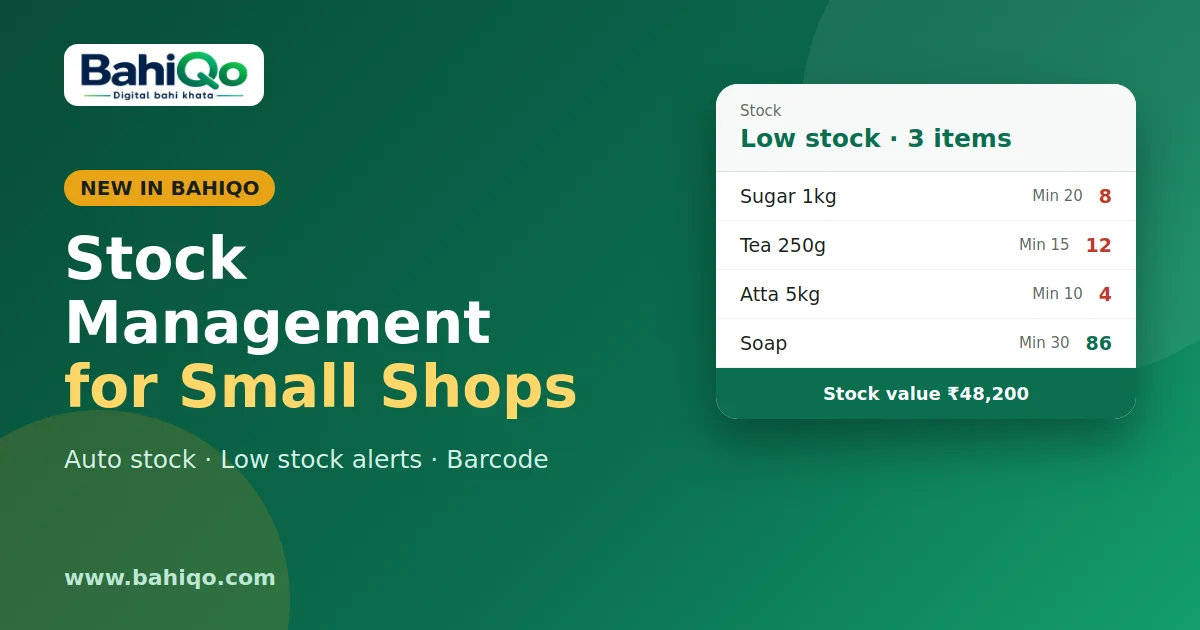
Set a low stock level on each item. When a sale takes the quantity down to or below that level, you get an in-app notification once per crossing, not on every sale. A Low stock list shows everything at or below its level. It also feeds the daily summary and the purchase order suggestions (see purchase orders).
Barcode lookup
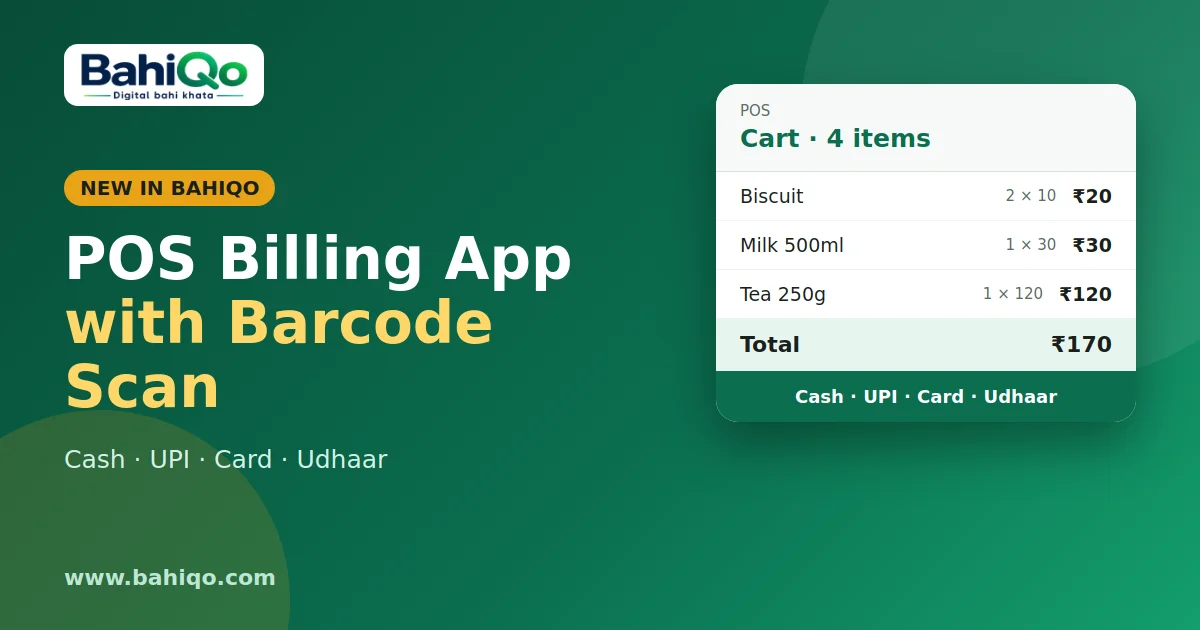
Scan or type a barcode and BahiQo finds the exact item. That is what makes counter billing fast; more in POS billing with barcode.
Manual adjustments, with a reason
Sometimes the shelf and the app disagree: breakage, a count mistake, a sample given away. Use Adjust stock to add or remove a quantity. A note is required, so a month later you can see why 12 pieces disappeared. Adjusting is allowed for owner, manager and staff; a viewer cannot.
Negative stock
By default BahiQo lets you bill an item even if the recorded quantity is zero, because real shops often sell first and enter the purchase later. The quantity goes negative until you record the purchase. If you prefer strict stock, the business can be set to refuse sales beyond available quantity.
Stock value and who can see it
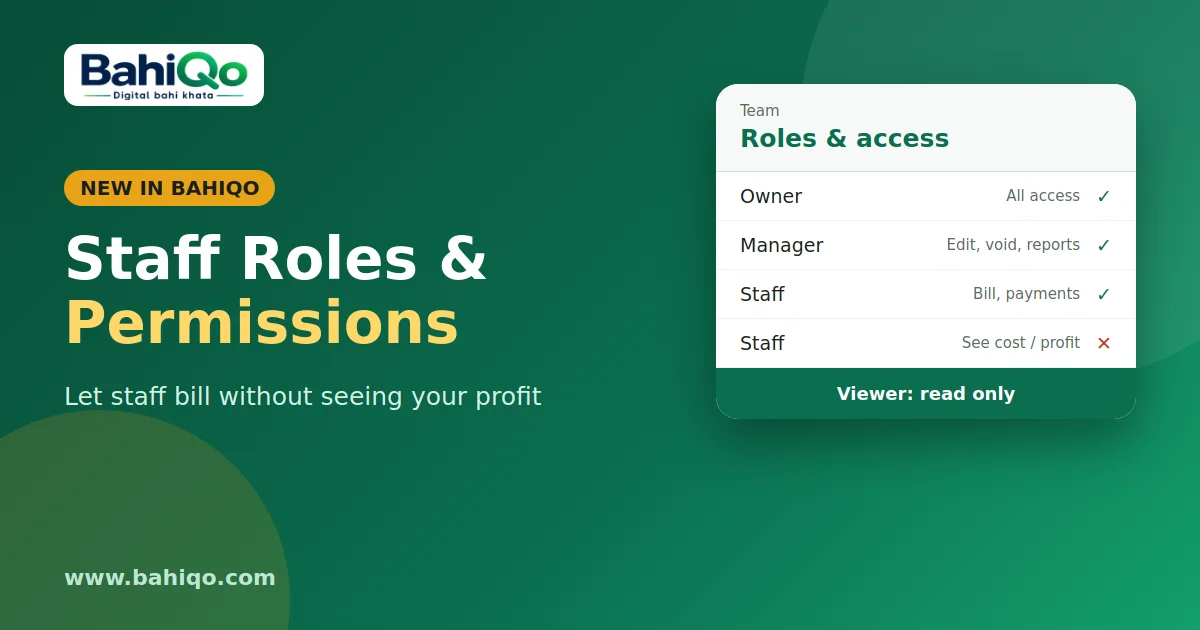
The stock summary shows item count, total quantity and value at purchase cost. Purchase prices and stock value are visible to owners and managers only; staff see items and quantities but not your cost. That matters when a counter staff member can see the screen. See staff roles and permissions.
A simple setup routine
- Add your 30 fastest-selling items first, with opening quantities from a quick count.
- Set low stock levels on those items.
- Bill normally for a week and fix items as they come up.
- Do a full count once, adjust differences with a note, then rely on the numbers.
What it will not do
- It does not know about stock you never entered; opening quantities matter.
- It does not do batch or expiry tracking, or multi-godown transfers.
- Plan limits on item count may apply depending on your plan.
Open the Stock section in the app or at web.bahiqo.com, add a few items and bill one of them. Watching the quantity drop on its own is the quickest way to see whether it fits your shop. Get the app to begin.